
Navigating the Task overview
To get a clear visual overview of all the integrations you’ve created and to search them by various filters, you can simply navigate to the Alumio Tasks page. It allows you to identify potential issues by reviewing processing details for every Task. Apart from helping manage each Task, it also allows you to manually Skip Tasks and export Task details.
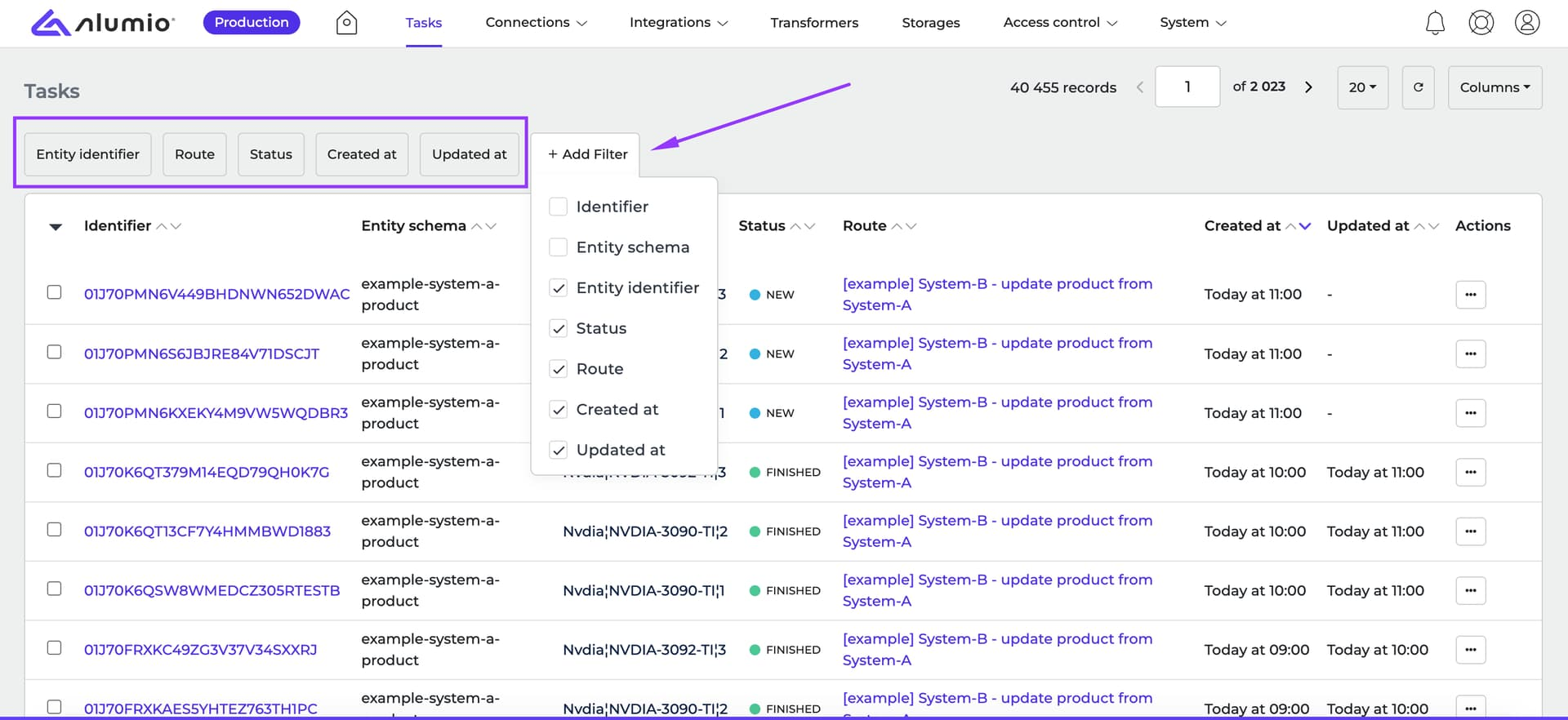
The Alumio Task page provides filters that allow you to view only those Tasks you need to track and manage, based on the following parameters:
- Route: filters Tasks based on their route(s)
- Status: filters Tasks based on their status(es)
- Created at: filters Tasks based on a range of time when they were created
- Updated at: filters Tasks based on a range of time when they were updated
- Identifier: filters Tasks whose identifier matches the given string (contains or equals)
- Entity Schema: filters Tasks whose entity schema matches the given string (contains or equals)
- Entity Identifier: filters Tasks whose entity identifier matches the given string (contains or equals)
Checking the Task details page
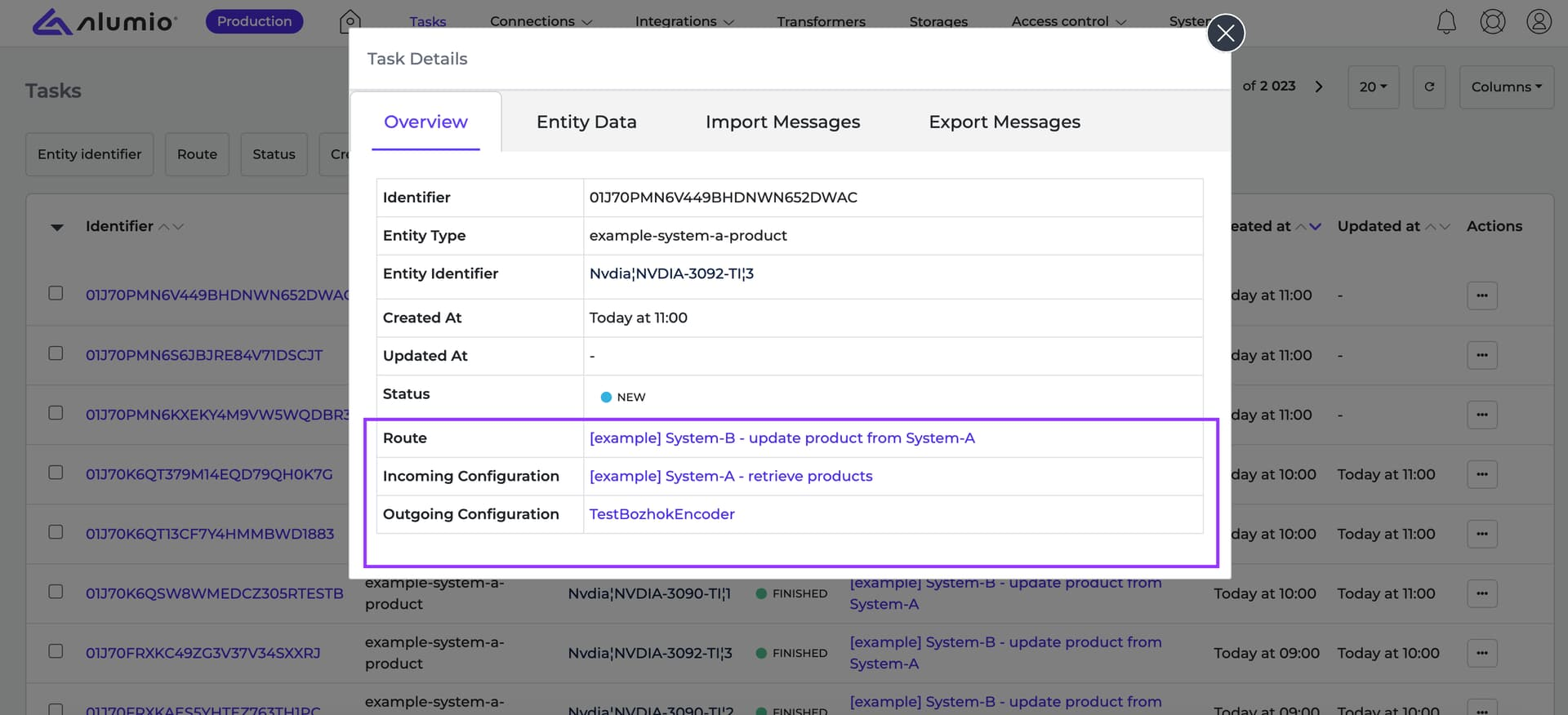
To view a Task’s details, simply click on its identifier or select the option from its settings in the overview. This opens the Task Details page, which includes four key tabs:
- Overview: Displays general Task information, including its current status and related configurations, such as the Route, Incoming configuration, and Outgoing configuration.
- Entity Data: Shows the data processed by the Task after being retrieved and transformed.
- Import Messages: Contains logs from the data retrieval process, detailing how the data was fetched and modified.
- Export Messages: Displays logs from the data delivery process, including transformations applied before sending the data to the target system.
Each Task’s log messages provide insights into processing steps, making it easier to troubleshoot issues and track data transformations.
Task Logs and status updates
The Logs section within Import and Export Messages provides additional insights into a Task’s progress. The following log messages indicate specific statuses:
- Finished Task: Confirms that the outgoing data was successfully processed.
- Failed Task: Indicates an issue prevented the Task from completing successfully.
- Repaired Task: Displays two logs: one indicating the Task is being repaired and another confirming the updated status.
- Invalid Status: If a Task encounters an invalid state, an exception will be logged.
To check logs efficiently, you can filter Import and Export messages by predefined timestamps to focus on specific time-periods.
How Alumio Tasks makes integrations simple
Understanding how data flows between systems is crucial for maintaining smooth integrations. Alumio’s Task Overview provides a structured, real-time view of every integration process, making it easier to track data movement, identify errors, and take corrective action, all without needing deep technical expertise. Here’s how it simplifies integration management and enhances troubleshooting:
1. Why Alumio Tasks matter in integration success
Every integration involves moving data between systems, but errors, delays, or incomplete data can disrupt business processes. Tasks in Alumio act as checkpoints, ensuring that every data transfer is logged, traceable, and manageable. Unlike traditional integrations where debugging issues is complex, Alumio provides transparent, self-contained Tasks that can be monitored, retried, or skipped as needed, making troubleshooting and maintenance far easier.
2. Filter and search integrations and Logs effortlessly
Instead of manually digging through raw logs or error reports, the Task Overview page offers a structured and searchable way to monitor integration health. By filtering Tasks by Route, Status, or Entity Identifier, users can instantly pinpoint specific integration issues or track data flows for compliance and auditing purposes.
3. Debugging integrations faster with Task Logs
Alumio’s Import and Export Messages break down each step, whether the data was retrieved successfully, transformed correctly, or if any system errors occurred. It helps clearly identify specific issues that lead to Failed Tasks. As such, these logs help bridge the gap between business users and developers, allowing teams to collaborate on fixes without deep technical expertise.
4. Granular control over data processing
Unlike rigid, automated pipelines where a failed process might halt an entire integration, Alumio lets you take control. Users can:
- Retry failed Tasks after fixing configurations
- Skip Tasks that no longer need processing
- Export Task details for external analysis
This flexibility ensures that integrations keep running smoothly, even when unexpected issues arise.
5. How Tasks simplify data synchronization
With traditional integrations, businesses often face challenges like duplicate data, missing records, or timing issues. Alumio Tasks, along with their status updates and retry mechanisms, ensure that every record is processed accurately, without manual rework or data inconsistencies.
Why Task management matters
Task management is at the heart of Alumio’s integration capabilities, offering a structured approach to monitor, control, and optimize data flows between systems. By categorizing Tasks into various statuses, such as New, Processing, Finished, Failed, and Skipped, Alumio provides real-time insights into every step of the integration process, making it easier for organizations to identify issues, reduce redundant work, and ensure that data is handled efficiently. It entails key business benefits such as:
- Efficiency is achieved by categorizing Tasks based on their status. This organization enables teams to quickly spot bottlenecks or errors in data flows, ensuring that only new or updated information is processed. As a result, resources are conserved, and the system avoids unnecessary reprocessing of unchanged data.
- Reliability is another key benefit. With automatic Task tracking for both real‑time and batch processes, Alumio ensures consistent data synchronization without manual intervention. This is critical for time-sensitive operations, like inventory updates or financial transactions, where delays or mistakes can have significant impacts.
- Flexibility is built into the system by supporting both synchronous (real‑time) and asynchronous (batch) processing. Real‑time processing handles immediate transactions as they occur, while batch processing schedules groups of Tasks for later execution. This dual approach allows organizations to tailor their integrations to match specific operational needs, whether for rapid transactions or routine data exchanges.
- Automation further enhances Task management by incorporating conditional logic to filter, transform, and even skip Tasks that do not meet certain criteria. This minimizes human error and ensures that only the right data is sent to its destination. Automated retries and intelligent error handling reduce the need for manual oversight, keeping the integration process smooth and efficient.
In Alumio, Tasks aren’t just counters or technical footnotes. They are the pulse of your entire integration ecosystem. Every Task represents a single, measurable truth: a specific entity, moving from one system to another, transformed and validated according to your design. Routes define the blueprint, but Tasks confirm whether that blueprint holds up in the real world.
A well-run Task pipeline gives you complete operational visibility:
- Statuses tell you instantly where data stands: new, in progress, done, delayed, or filtered out.
- Logs show the narrative behind every status, revealing the exact step where success happened or failure crept in.
- Actions like Retry, Skip, and Waiting give you precise levers to correct errors without disrupting the rest of the flow.
This visibility isn’t just for developers. Business teams can confirm that high-value data, like orders, payments, or stock updates, has safely arrived where it needs to be. Compliance teams can audit historical transfers with confidence. Operations can spot bottlenecks before they snowball into delays.
To fully master Tasks is to turn integration from a “black box” into an open book, where every line of the story is clear, searchable, and actionable.
How Tasks are as good as the Routes that lead to them
Tasks are the measurable proof that your integrations are alive and functioning, each one a record of data moving from source to destination, transformed, validated, and delivered according to your design. They are your integration truth: statuses show where each entity stands, logs reveal the story behind every success or failure, and actions like Retry, Skip, and Waiting give you the precision tools to resolve issues without disruption.
But Tasks don’t happen in isolation. They are born from Routes. Every well-built Route is the blueprint, and every Task it generates is the evidence that the blueprint works in practice. When Routes are designed with precision, with clear source and destination logic, reliable transforms, and efficient scheduling, Tasks flow smoothly, queues stay lean, and troubleshooting becomes fast and targeted. Poorly constructed Routes, on the other hand, lead to bottlenecks, failures, and noise in your Task overview.
In other words, Routes define intent; Tasks confirm reality. Routes are the architects, Tasks are the inspectors. The healthier your Routes, the more predictable, efficient, and reliable your Tasks become.
Now that you’ve explored Tasks in depth, understanding their lifecycle, statuses, logs, and role in scaling integrations, you’re ready to go upstream and design the Routes that make them possible. In the next course, we’ll dive into how to build Routes with the precision and foresight that set your Tasks up for success. With this Task-first mindset, every Route you create will be observable, debuggable, and operationally sound from day one.


.svg)
.svg)
.svg)
.svg)
.svg)
.svg)
